> ## Documentation Index
> Fetch the complete documentation index at: https://tbd-6fc993ce-hypeship-scraperly-link.mintlify.site/llms.txt
> Use this file to discover all available pages before exploring further.
# Computer Controls
> Control the computer's mouse, keyboard, and screen
Use OS-level controls to move and click the mouse, type and press keys, scroll, drag, and capture screenshots from a running browser session. Both `moveMouse` and `dragMouse` use human-like [Bézier curves](https://en.wikipedia.org/wiki/B%C3%A9zier_curve) by default.
## Click the mouse
Simulate mouse clicks at specific coordinates. You can select the button, click type (down, up, click), number of clicks, and optional modifier keys to hold.
```typescript Typescript/Javascript theme={null}
import Kernel from '@onkernel/sdk';
const kernel = new Kernel();
const kernelBrowser = await kernel.browsers.create();
// Basic left click at (100, 200)
await kernel.browsers.computer.clickMouse(kernelBrowser.session_id, {
x: 100,
y: 200,
});
// Double right-click while holding Shift
await kernel.browsers.computer.clickMouse(kernelBrowser.session_id, {
x: 100,
y: 200,
button: 'right',
click_type: 'click',
num_clicks: 2,
hold_keys: ['Shift'],
});
```
```python Python theme={null}
from kernel import Kernel
kernel = Kernel()
kernel_browser = kernel.browsers.create()
# Basic left click at (100, 200)
kernel.browsers.computer.click_mouse(
id=kernel_browser.session_id,
x=100,
y=200,
)
# Double right-click while holding Shift
kernel.browsers.computer.click_mouse(
id=kernel_browser.session_id,
x=100,
y=200,
button="right",
click_type="click",
num_clicks=2,
hold_keys=["Shift"],
)
```
```bash CLI theme={null}
# Click the mouse at coordinates (100, 200)
kernel browsers computer click-mouse --x 100 --y 200
# Double-click the right mouse button
kernel browsers computer click-mouse --x 100 --y 200 --num-clicks 2 --button right
```
## Move the mouse
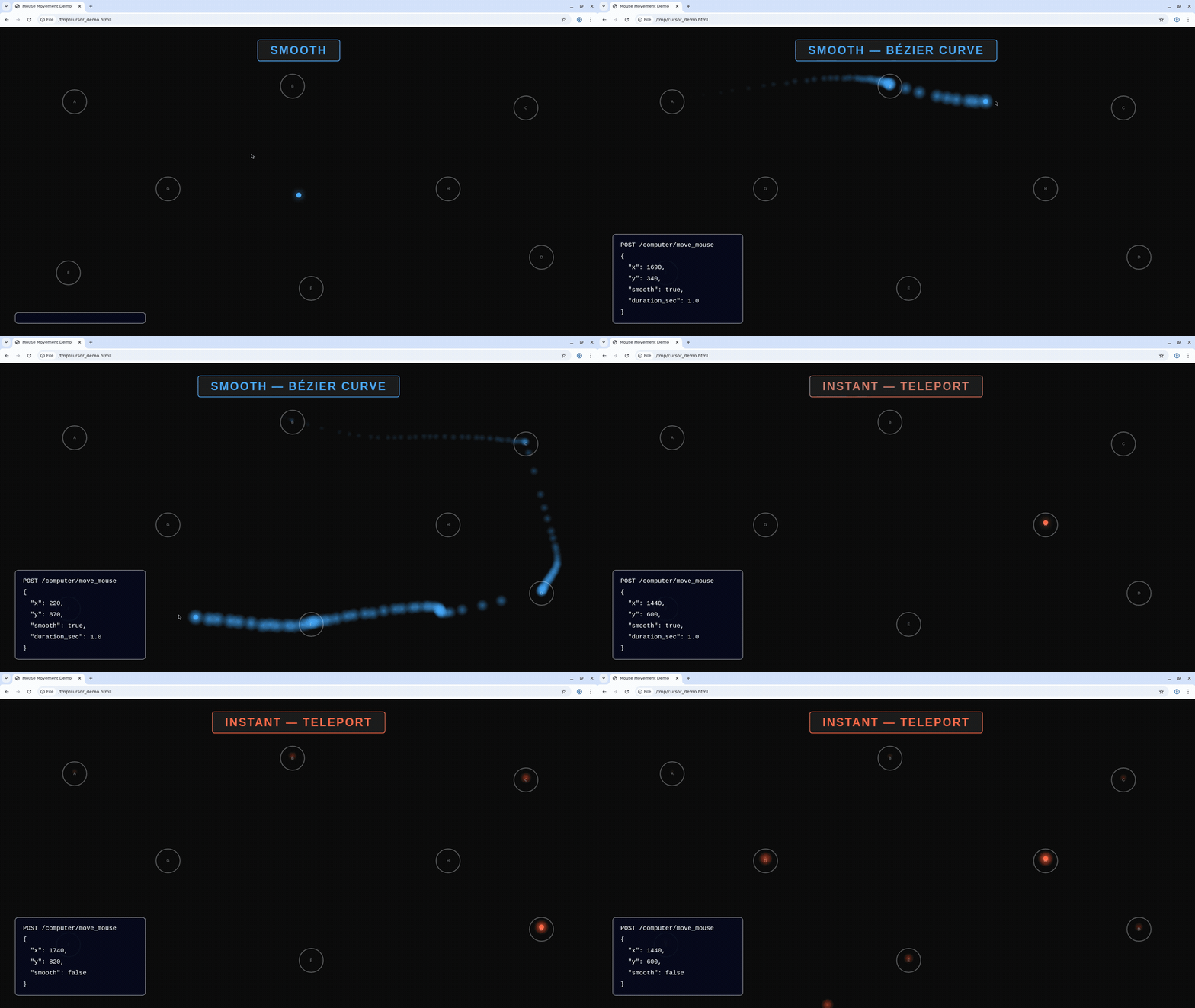
Move the cursor to specific screen coordinates. By default, the cursor follows a human-like Bezier curve path instead of teleporting instantly. You can control this with `smooth` and `duration_ms`.
| Parameter | Type | Default | Description |
| ------------- | ------- | ------- | ---------------------------------------------------------------------------------------------------------- |
| `x` | integer | — | X coordinate to move the cursor to |
| `y` | integer | — | Y coordinate to move the cursor to |
| `smooth` | boolean | `true` | Use human-like Bezier curve path instead of instant teleport |
| `duration_ms` | integer | auto | Target duration in milliseconds for smooth movement (50–5000). Omit for automatic timing based on distance |
| `hold_keys` | array | — | Modifier keys to hold during the move |
```typescript Typescript/Javascript theme={null}
import Kernel from '@onkernel/sdk';
const kernel = new Kernel();
const kernelBrowser = await kernel.browsers.create();
// Human-like smooth movement (default)
await kernel.browsers.computer.moveMouse(kernelBrowser.session_id, {
x: 500,
y: 300,
});
// Smooth movement with custom duration
await kernel.browsers.computer.moveMouse(kernelBrowser.session_id, {
x: 800,
y: 600,
smooth: true,
duration_ms: 1500,
});
// Instant teleport (disable smooth)
await kernel.browsers.computer.moveMouse(kernelBrowser.session_id, {
x: 100,
y: 200,
smooth: false,
});
```
```python Python theme={null}
from kernel import Kernel
kernel = Kernel()
kernel_browser = kernel.browsers.create()
# Human-like smooth movement (default)
kernel.browsers.computer.move_mouse(
id=kernel_browser.session_id,
x=500,
y=300,
)
# Smooth movement with custom duration
kernel.browsers.computer.move_mouse(
id=kernel_browser.session_id,
x=800,
y=600,
smooth=True,
duration_ms=1500,
)
# Instant teleport (disable smooth)
kernel.browsers.computer.move_mouse(
id=kernel_browser.session_id,
x=100,
y=200,
smooth=False,
)
```
```bash CLI theme={null}
# Smooth movement (default)
kernel browsers computer move-mouse --x 500 --y 300
# Instant teleport
kernel browsers computer move-mouse --x 500 --y 300 --smooth=false
```
### Smooth vs instant movement
 ## Take screenshots
Capture a full-screen PNG or a specific region.
For WebGL and other animation-heavy pages, `captureScreenshot` is noticeably faster than CDP's `Page.captureScreenshot`. If you're driving a computer-use loop off screenshots, prefer computer controls. [GPU acceleration](/browsers/gpu-acceleration) gives an additional small speedup for computer controls screenshots, but does not speed up CDP screenshots.
```typescript Typescript/Javascript theme={null}
import fs from 'fs';
import { Buffer } from 'buffer';
import Kernel from '@onkernel/sdk';
const kernel = new Kernel();
const kernelBrowser = await kernel.browsers.create();
// Full screenshot
{
const response = await kernel.browsers.computer.captureScreenshot(kernelBrowser.session_id);
const blob = await response.blob();
const buffer = Buffer.from(await blob.arrayBuffer());
fs.writeFileSync('screenshot.png', buffer);
}
// Region screenshot
{
const response = await kernel.browsers.computer.captureScreenshot(kernelBrowser.session_id, {
region: { x: 0, y: 0, width: 800, height: 600 },
});
const blob = await response.blob();
const buffer = Buffer.from(await blob.arrayBuffer());
fs.writeFileSync('region.png', buffer);
}
```
```python Python theme={null}
from kernel import Kernel
kernel = Kernel()
kernel_browser = kernel.browsers.create()
# Full screenshot
with open('screenshot.png', 'wb') as f:
image_data = kernel.browsers.computer.capture_screenshot(id=kernel_browser.session_id)
f.write(image_data.read())
# Region screenshot
with open('region.png', 'wb') as f:
image_data = kernel.browsers.computer.capture_screenshot(
id=kernel_browser.session_id,
region={"x": 0, "y": 0, "width": 800, "height": 600},
)
f.write(image_data.read())
```
```bash CLI theme={null}
# Take a full screenshot
kernel browsers computer screenshot --to screenshot.png
# Take a screenshot of a specific region
kernel browsers computer screenshot --to region.png --x 0 --y 0 --width 800 --height 600
```
## Type text
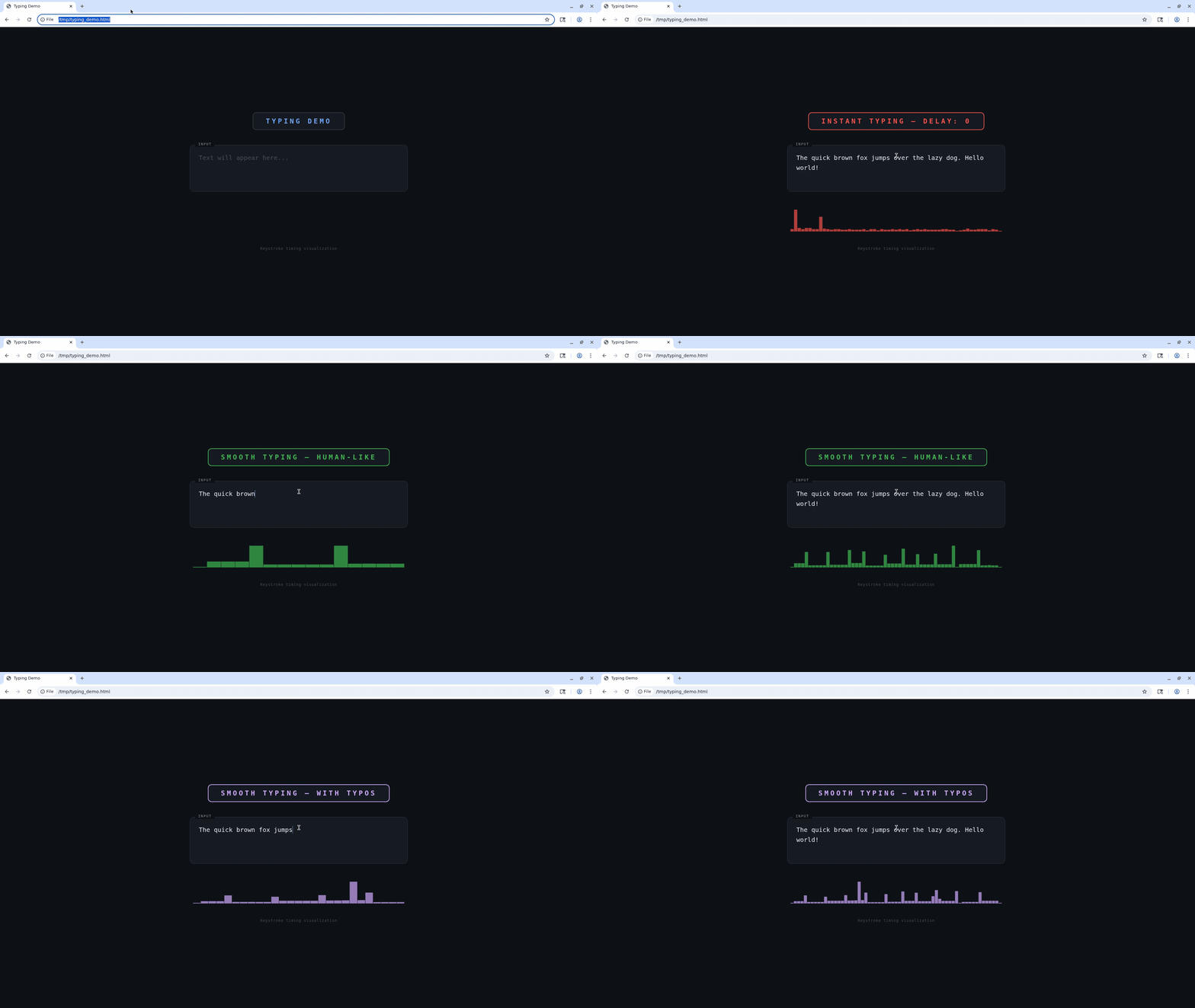
Type literal text on the host. By default, typing uses human-like variable timing: word-sized chunks, natural pauses at word and sentence boundaries, and optional realistic typos corrected with backspace. Set `smooth: false` for xdotool typing with a fixed per-keystroke delay (`delay`, in ms) or instant input when `delay` is `0`.
| Parameter | Type | Default | Description |
| ------------- | ------- | ------- | --------------------------------------------------------------------------------------------------------------------------------------------------------------------------------------------------------------------------- |
| `text` | string | — | Text to type |
| `delay` | integer | `0` | Fixed delay in milliseconds between keystrokes. Only used when `smooth` is `false`; ignored when `smooth` is `true` |
| `smooth` | boolean | `true` | Human-like variable keystroke timing with word-boundary pauses (default, same idea as `moveMouse` / `dragMouse`) |
| `typo_chance` | number | `0` | Per-character typo rate from 0–0.10 (capped; 0.10 ≈ 10% per character on average), corrected with backspace. Only applies when `smooth` is `true` (silently ignored when `smooth` is `false`). Typical values are 0.02–0.05 |
```typescript Typescript/Javascript theme={null}
import Kernel from '@onkernel/sdk';
const kernel = new Kernel();
const kernelBrowser = await kernel.browsers.create();
// Human-like smooth typing (default — omit smooth or pass true)
await kernel.browsers.computer.typeText(kernelBrowser.session_id, {
text: 'The quick brown fox jumps over the lazy dog.',
});
// Human-like with occasional typos (3% chance per character)
await kernel.browsers.computer.typeText(kernelBrowser.session_id, {
text: 'The quick brown fox jumps over the lazy dog.',
typo_chance: 0.03,
});
// Instant typing (all at once, no per-key delay)
await kernel.browsers.computer.typeText(kernelBrowser.session_id, {
text: 'Hello, World!',
smooth: false,
});
// Fixed delay between keystrokes (smooth off)
await kernel.browsers.computer.typeText(kernelBrowser.session_id, {
text: 'Slow typing...',
smooth: false,
delay: 100,
});
```
```python Python theme={null}
from kernel import Kernel
kernel = Kernel()
kernel_browser = kernel.browsers.create()
# Human-like smooth typing (default — omit smooth or pass True)
kernel.browsers.computer.type_text(
id=kernel_browser.session_id,
text="The quick brown fox jumps over the lazy dog.",
)
# Human-like with occasional typos (3% chance per character)
kernel.browsers.computer.type_text(
id=kernel_browser.session_id,
text="The quick brown fox jumps over the lazy dog.",
typo_chance=0.03,
)
# Instant typing (all at once, no per-key delay)
kernel.browsers.computer.type_text(
id=kernel_browser.session_id,
text="Hello, World!",
smooth=False,
)
# Fixed delay between keystrokes (smooth off)
kernel.browsers.computer.type_text(
id=kernel_browser.session_id,
text="Slow typing...",
smooth=False,
delay=100,
)
```
```bash CLI theme={null}
# Human-like smooth typing (default)
kernel browsers computer type --text "The quick brown fox"
# Human-like with occasional typos
kernel browsers computer type --text "The quick brown fox" --typo-chance 0.03
# Instant typing (all at once)
kernel browsers computer type --text "Hello, World!" --smooth=false
# Fixed delay between keystrokes (smooth off)
kernel browsers computer type --text "Slow typing..." --smooth=false --delay 100
```
### Smooth vs instant typing
## Take screenshots
Capture a full-screen PNG or a specific region.
For WebGL and other animation-heavy pages, `captureScreenshot` is noticeably faster than CDP's `Page.captureScreenshot`. If you're driving a computer-use loop off screenshots, prefer computer controls. [GPU acceleration](/browsers/gpu-acceleration) gives an additional small speedup for computer controls screenshots, but does not speed up CDP screenshots.
```typescript Typescript/Javascript theme={null}
import fs from 'fs';
import { Buffer } from 'buffer';
import Kernel from '@onkernel/sdk';
const kernel = new Kernel();
const kernelBrowser = await kernel.browsers.create();
// Full screenshot
{
const response = await kernel.browsers.computer.captureScreenshot(kernelBrowser.session_id);
const blob = await response.blob();
const buffer = Buffer.from(await blob.arrayBuffer());
fs.writeFileSync('screenshot.png', buffer);
}
// Region screenshot
{
const response = await kernel.browsers.computer.captureScreenshot(kernelBrowser.session_id, {
region: { x: 0, y: 0, width: 800, height: 600 },
});
const blob = await response.blob();
const buffer = Buffer.from(await blob.arrayBuffer());
fs.writeFileSync('region.png', buffer);
}
```
```python Python theme={null}
from kernel import Kernel
kernel = Kernel()
kernel_browser = kernel.browsers.create()
# Full screenshot
with open('screenshot.png', 'wb') as f:
image_data = kernel.browsers.computer.capture_screenshot(id=kernel_browser.session_id)
f.write(image_data.read())
# Region screenshot
with open('region.png', 'wb') as f:
image_data = kernel.browsers.computer.capture_screenshot(
id=kernel_browser.session_id,
region={"x": 0, "y": 0, "width": 800, "height": 600},
)
f.write(image_data.read())
```
```bash CLI theme={null}
# Take a full screenshot
kernel browsers computer screenshot --to screenshot.png
# Take a screenshot of a specific region
kernel browsers computer screenshot --to region.png --x 0 --y 0 --width 800 --height 600
```
## Type text
Type literal text on the host. By default, typing uses human-like variable timing: word-sized chunks, natural pauses at word and sentence boundaries, and optional realistic typos corrected with backspace. Set `smooth: false` for xdotool typing with a fixed per-keystroke delay (`delay`, in ms) or instant input when `delay` is `0`.
| Parameter | Type | Default | Description |
| ------------- | ------- | ------- | --------------------------------------------------------------------------------------------------------------------------------------------------------------------------------------------------------------------------- |
| `text` | string | — | Text to type |
| `delay` | integer | `0` | Fixed delay in milliseconds between keystrokes. Only used when `smooth` is `false`; ignored when `smooth` is `true` |
| `smooth` | boolean | `true` | Human-like variable keystroke timing with word-boundary pauses (default, same idea as `moveMouse` / `dragMouse`) |
| `typo_chance` | number | `0` | Per-character typo rate from 0–0.10 (capped; 0.10 ≈ 10% per character on average), corrected with backspace. Only applies when `smooth` is `true` (silently ignored when `smooth` is `false`). Typical values are 0.02–0.05 |
```typescript Typescript/Javascript theme={null}
import Kernel from '@onkernel/sdk';
const kernel = new Kernel();
const kernelBrowser = await kernel.browsers.create();
// Human-like smooth typing (default — omit smooth or pass true)
await kernel.browsers.computer.typeText(kernelBrowser.session_id, {
text: 'The quick brown fox jumps over the lazy dog.',
});
// Human-like with occasional typos (3% chance per character)
await kernel.browsers.computer.typeText(kernelBrowser.session_id, {
text: 'The quick brown fox jumps over the lazy dog.',
typo_chance: 0.03,
});
// Instant typing (all at once, no per-key delay)
await kernel.browsers.computer.typeText(kernelBrowser.session_id, {
text: 'Hello, World!',
smooth: false,
});
// Fixed delay between keystrokes (smooth off)
await kernel.browsers.computer.typeText(kernelBrowser.session_id, {
text: 'Slow typing...',
smooth: false,
delay: 100,
});
```
```python Python theme={null}
from kernel import Kernel
kernel = Kernel()
kernel_browser = kernel.browsers.create()
# Human-like smooth typing (default — omit smooth or pass True)
kernel.browsers.computer.type_text(
id=kernel_browser.session_id,
text="The quick brown fox jumps over the lazy dog.",
)
# Human-like with occasional typos (3% chance per character)
kernel.browsers.computer.type_text(
id=kernel_browser.session_id,
text="The quick brown fox jumps over the lazy dog.",
typo_chance=0.03,
)
# Instant typing (all at once, no per-key delay)
kernel.browsers.computer.type_text(
id=kernel_browser.session_id,
text="Hello, World!",
smooth=False,
)
# Fixed delay between keystrokes (smooth off)
kernel.browsers.computer.type_text(
id=kernel_browser.session_id,
text="Slow typing...",
smooth=False,
delay=100,
)
```
```bash CLI theme={null}
# Human-like smooth typing (default)
kernel browsers computer type --text "The quick brown fox"
# Human-like with occasional typos
kernel browsers computer type --text "The quick brown fox" --typo-chance 0.03
# Instant typing (all at once)
kernel browsers computer type --text "Hello, World!" --smooth=false
# Fixed delay between keystrokes (smooth off)
kernel browsers computer type --text "Slow typing..." --smooth=false --delay 100
```
### Smooth vs instant typing
 ## Press keys
Press one or more key symbols (including combinations like "Ctrl+t" or "Ctrl+Shift+Tab"). Optionally hold modifiers and/or set a duration to hold keys down.
```typescript Typescript/Javascript theme={null}
import Kernel from '@onkernel/sdk';
const kernel = new Kernel();
const kernelBrowser = await kernel.browsers.create();
// Tap a key combination
await kernel.browsers.computer.pressKey(kernelBrowser.session_id, {
keys: ['Ctrl+t'],
});
// Hold keys for 250ms while also holding Alt
await kernel.browsers.computer.pressKey(kernelBrowser.session_id, {
keys: ['Ctrl+Shift+Tab'],
duration: 250,
hold_keys: ['Alt'],
});
```
```python Python theme={null}
from kernel import Kernel
kernel = Kernel()
kernel_browser = kernel.browsers.create()
# Tap a key combination
kernel.browsers.computer.press_key(
id=kernel_browser.session_id,
keys=["Ctrl+t"],
)
# Hold keys for 250ms while also holding Alt
kernel.browsers.computer.press_key(
id=kernel_browser.session_id,
keys=["Ctrl+Shift+Tab"],
duration=250,
hold_keys=["Alt"],
)
```
```bash CLI theme={null}
# Press one or more keys (repeatable --key)
kernel browsers computer press-key --key Ctrl+t
# Hold for a duration and add optional modifiers
kernel browsers computer press-key --key Ctrl+Shift+Tab --duration 250 --hold-key Alt
```
## Scroll
Scroll the mouse wheel at a specific position. Positive `delta_y` scrolls down; negative scrolls up. Positive `delta_x` scrolls right; negative scrolls left. Scroll amounts refer to "wheel units."
```typescript Typescript/Javascript theme={null}
import Kernel from '@onkernel/sdk';
const kernel = new Kernel();
const kernelBrowser = await kernel.browsers.create();
await kernel.browsers.computer.scroll(kernelBrowser.session_id, {
x: 300,
y: 400,
delta_x: 0,
delta_y: 120,
});
```
```python Python theme={null}
from kernel import Kernel
kernel = Kernel()
kernel_browser = kernel.browsers.create()
kernel.browsers.computer.scroll(
id=kernel_browser.session_id,
x=300,
y=400,
delta_x=0,
delta_y=120,
)
```
```bash CLI theme={null}
# Scroll at a position
kernel browsers computer scroll --x 300 --y 400 --delta-y 120
```
## Drag the mouse
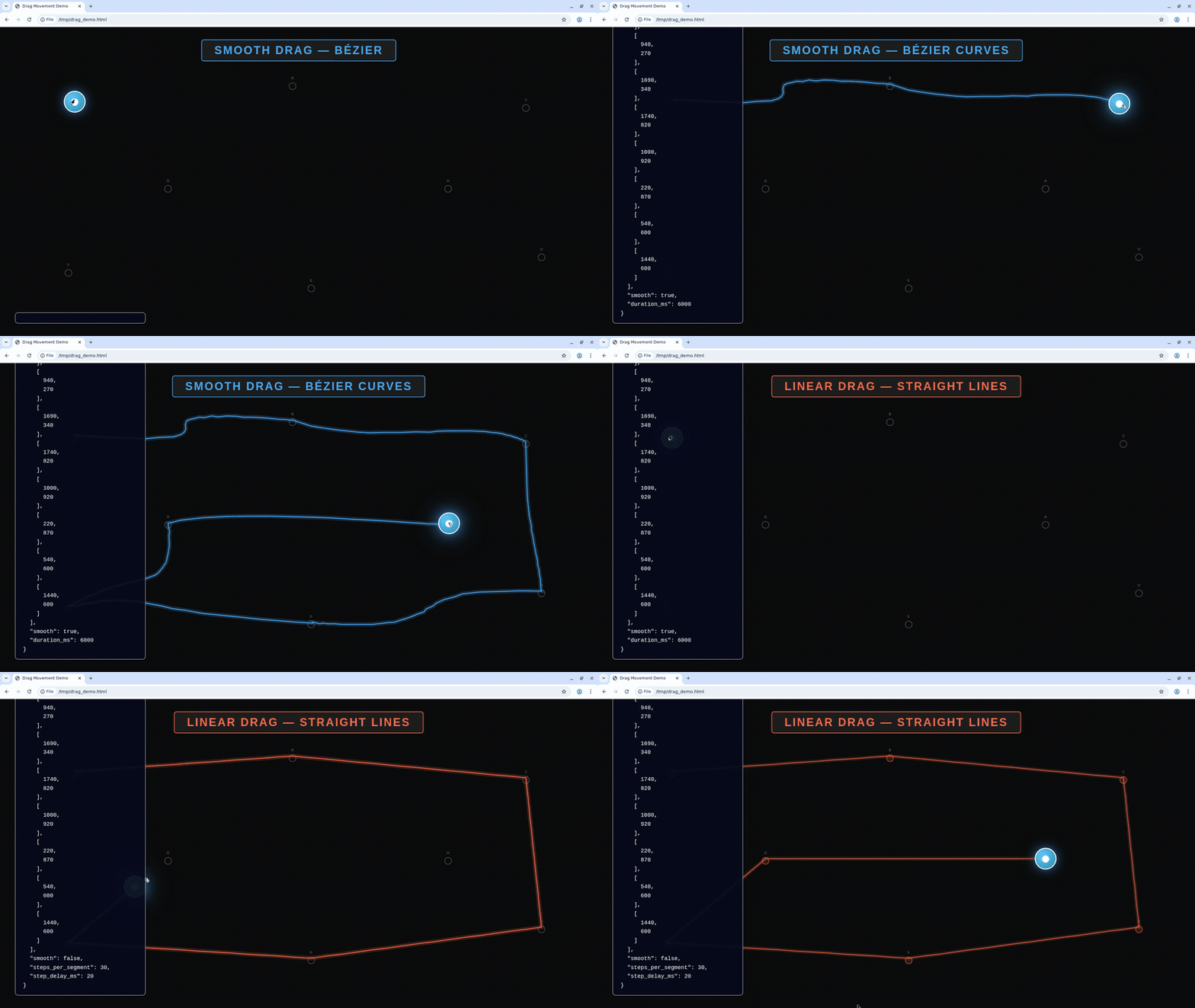
Drag by pressing a button, moving along a path of points, then releasing. By default, drag movement uses human-like Bezier curves between waypoints. Set `smooth: false` to use linear interpolation with `steps_per_segment` and `step_delay_ms` instead.
| Parameter | Type | Default | Description |
| ------------------- | ------- | ------- | --------------------------------------------------------------------------------------------------------------------------------------- |
| `path` | array | — | Ordered list of `[x, y]` coordinate pairs to move through (minimum 2 points) |
| `button` | string | `left` | Mouse button: `left`, `middle`, or `right` |
| `smooth` | boolean | `true` | Use human-like Bezier curves between waypoints. When `true`, `steps_per_segment` and `step_delay_ms` are ignored |
| `duration_ms` | integer | auto | Target duration in milliseconds for the entire drag when `smooth=true` (50–10000). Omit for automatic timing based on total path length |
| `delay` | integer | `0` | Delay in milliseconds between button down and starting to move |
| `steps_per_segment` | integer | `10` | Number of interpolation steps per path segment (only when `smooth=false`) |
| `step_delay_ms` | integer | `50` | Delay in milliseconds between steps (only when `smooth=false`) |
| `hold_keys` | array | — | Modifier keys to hold during the drag |
### Smooth vs linear drag
## Press keys
Press one or more key symbols (including combinations like "Ctrl+t" or "Ctrl+Shift+Tab"). Optionally hold modifiers and/or set a duration to hold keys down.
```typescript Typescript/Javascript theme={null}
import Kernel from '@onkernel/sdk';
const kernel = new Kernel();
const kernelBrowser = await kernel.browsers.create();
// Tap a key combination
await kernel.browsers.computer.pressKey(kernelBrowser.session_id, {
keys: ['Ctrl+t'],
});
// Hold keys for 250ms while also holding Alt
await kernel.browsers.computer.pressKey(kernelBrowser.session_id, {
keys: ['Ctrl+Shift+Tab'],
duration: 250,
hold_keys: ['Alt'],
});
```
```python Python theme={null}
from kernel import Kernel
kernel = Kernel()
kernel_browser = kernel.browsers.create()
# Tap a key combination
kernel.browsers.computer.press_key(
id=kernel_browser.session_id,
keys=["Ctrl+t"],
)
# Hold keys for 250ms while also holding Alt
kernel.browsers.computer.press_key(
id=kernel_browser.session_id,
keys=["Ctrl+Shift+Tab"],
duration=250,
hold_keys=["Alt"],
)
```
```bash CLI theme={null}
# Press one or more keys (repeatable --key)
kernel browsers computer press-key --key Ctrl+t
# Hold for a duration and add optional modifiers
kernel browsers computer press-key --key Ctrl+Shift+Tab --duration 250 --hold-key Alt
```
## Scroll
Scroll the mouse wheel at a specific position. Positive `delta_y` scrolls down; negative scrolls up. Positive `delta_x` scrolls right; negative scrolls left. Scroll amounts refer to "wheel units."
```typescript Typescript/Javascript theme={null}
import Kernel from '@onkernel/sdk';
const kernel = new Kernel();
const kernelBrowser = await kernel.browsers.create();
await kernel.browsers.computer.scroll(kernelBrowser.session_id, {
x: 300,
y: 400,
delta_x: 0,
delta_y: 120,
});
```
```python Python theme={null}
from kernel import Kernel
kernel = Kernel()
kernel_browser = kernel.browsers.create()
kernel.browsers.computer.scroll(
id=kernel_browser.session_id,
x=300,
y=400,
delta_x=0,
delta_y=120,
)
```
```bash CLI theme={null}
# Scroll at a position
kernel browsers computer scroll --x 300 --y 400 --delta-y 120
```
## Drag the mouse
Drag by pressing a button, moving along a path of points, then releasing. By default, drag movement uses human-like Bezier curves between waypoints. Set `smooth: false` to use linear interpolation with `steps_per_segment` and `step_delay_ms` instead.
| Parameter | Type | Default | Description |
| ------------------- | ------- | ------- | --------------------------------------------------------------------------------------------------------------------------------------- |
| `path` | array | — | Ordered list of `[x, y]` coordinate pairs to move through (minimum 2 points) |
| `button` | string | `left` | Mouse button: `left`, `middle`, or `right` |
| `smooth` | boolean | `true` | Use human-like Bezier curves between waypoints. When `true`, `steps_per_segment` and `step_delay_ms` are ignored |
| `duration_ms` | integer | auto | Target duration in milliseconds for the entire drag when `smooth=true` (50–10000). Omit for automatic timing based on total path length |
| `delay` | integer | `0` | Delay in milliseconds between button down and starting to move |
| `steps_per_segment` | integer | `10` | Number of interpolation steps per path segment (only when `smooth=false`) |
| `step_delay_ms` | integer | `50` | Delay in milliseconds between steps (only when `smooth=false`) |
| `hold_keys` | array | — | Modifier keys to hold during the drag |
### Smooth vs linear drag
 ```typescript Typescript/Javascript theme={null}
import Kernel from '@onkernel/sdk';
const kernel = new Kernel();
const kernelBrowser = await kernel.browsers.create();
// Human-like smooth drag (default)
await kernel.browsers.computer.dragMouse(kernelBrowser.session_id, {
path: [
[100, 200],
[400, 350],
[700, 200],
],
});
// Smooth drag with custom duration
await kernel.browsers.computer.dragMouse(kernelBrowser.session_id, {
path: [
[100, 200],
[400, 350],
[700, 200],
],
smooth: true,
duration_ms: 2000,
});
// Linear interpolation drag (legacy behavior)
await kernel.browsers.computer.dragMouse(kernelBrowser.session_id, {
path: [
[100, 200],
[400, 350],
[700, 200],
],
smooth: false,
steps_per_segment: 10,
step_delay_ms: 50,
});
```
```python Python theme={null}
from kernel import Kernel
kernel = Kernel()
kernel_browser = kernel.browsers.create()
# Human-like smooth drag (default)
kernel.browsers.computer.drag_mouse(
id=kernel_browser.session_id,
path=[[100, 200], [400, 350], [700, 200]],
)
# Smooth drag with custom duration
kernel.browsers.computer.drag_mouse(
id=kernel_browser.session_id,
path=[[100, 200], [400, 350], [700, 200]],
smooth=True,
duration_ms=2000,
)
# Linear interpolation drag (legacy behavior)
kernel.browsers.computer.drag_mouse(
id=kernel_browser.session_id,
path=[[100, 200], [400, 350], [700, 200]],
smooth=False,
steps_per_segment=10,
step_delay_ms=50,
)
```
```bash CLI theme={null}
# Smooth drag (default)
kernel browsers computer drag-mouse \
--point 100,200 \
--point 400,350 \
--point 700,200
# Linear interpolation drag
kernel browsers computer drag-mouse \
--point 100,200 \
--point 400,350 \
--point 700,200 \
--smooth=false \
--steps-per-segment 10 \
--step-delay-ms 50
```
```typescript Typescript/Javascript theme={null}
import Kernel from '@onkernel/sdk';
const kernel = new Kernel();
const kernelBrowser = await kernel.browsers.create();
// Human-like smooth drag (default)
await kernel.browsers.computer.dragMouse(kernelBrowser.session_id, {
path: [
[100, 200],
[400, 350],
[700, 200],
],
});
// Smooth drag with custom duration
await kernel.browsers.computer.dragMouse(kernelBrowser.session_id, {
path: [
[100, 200],
[400, 350],
[700, 200],
],
smooth: true,
duration_ms: 2000,
});
// Linear interpolation drag (legacy behavior)
await kernel.browsers.computer.dragMouse(kernelBrowser.session_id, {
path: [
[100, 200],
[400, 350],
[700, 200],
],
smooth: false,
steps_per_segment: 10,
step_delay_ms: 50,
});
```
```python Python theme={null}
from kernel import Kernel
kernel = Kernel()
kernel_browser = kernel.browsers.create()
# Human-like smooth drag (default)
kernel.browsers.computer.drag_mouse(
id=kernel_browser.session_id,
path=[[100, 200], [400, 350], [700, 200]],
)
# Smooth drag with custom duration
kernel.browsers.computer.drag_mouse(
id=kernel_browser.session_id,
path=[[100, 200], [400, 350], [700, 200]],
smooth=True,
duration_ms=2000,
)
# Linear interpolation drag (legacy behavior)
kernel.browsers.computer.drag_mouse(
id=kernel_browser.session_id,
path=[[100, 200], [400, 350], [700, 200]],
smooth=False,
steps_per_segment=10,
step_delay_ms=50,
)
```
```bash CLI theme={null}
# Smooth drag (default)
kernel browsers computer drag-mouse \
--point 100,200 \
--point 400,350 \
--point 700,200
# Linear interpolation drag
kernel browsers computer drag-mouse \
--point 100,200 \
--point 400,350 \
--point 700,200 \
--smooth=false \
--steps-per-segment 10 \
--step-delay-ms 50
```